General Information
The
assessment process can be started by selecting the IM EVAL Icon. This can be found by pressing the Windows
START, Programs, IEG IME (or whatever you might have named the folder during
the installation process), IMEVAL ICON.
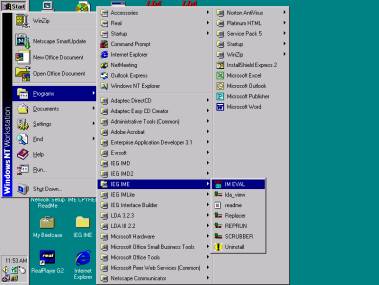
An
alternative startup would be to access the IEG IME installation folder opened
as illustrated below. Selecting the IM
EVAL Icon will open a run time session.
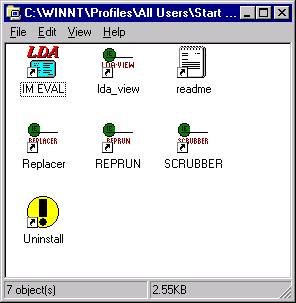
Selecting the IM EVAL will automatically open a session. You are now ready to load a model or create a new database.
Creating a new IM Database:
To start the IM Assessment program click on IM EVAL ICON and the IM LDA production run time will begin. Follow the normal EAD/LDA run time procedure and be sure to begin with a newly created run time database.
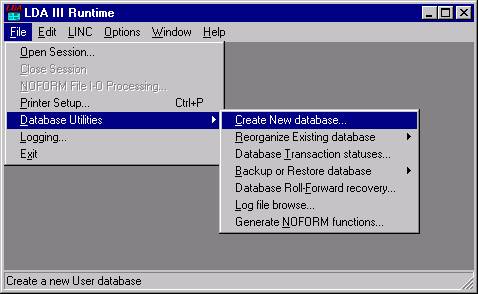
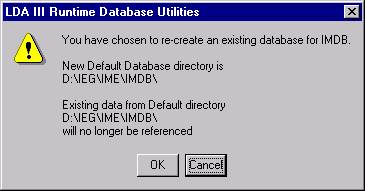
Followed by a confirmation
that you wish to create a new database.
Loading
a Model:
The
Configuration screen has setup information necessary for the software to
function. Please provide the following
information. Load time will vary
depending on the speed and memory of the workstation. Time to load could range from 10MB - 24MB per hour. A 40MB CASE model may take 1-4 hours to
complete on 300MH machine or lower and 30–90 minutes on faster 700+ MH
machines.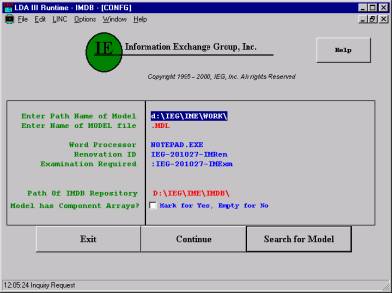
1.
Use
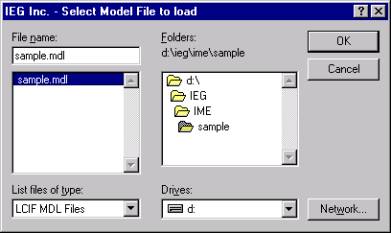
the “Search for Model” button to locate the LINC CASE model being loaded or
enter the Name of MODEL file manually.
The model name, not counting the extension, should be 7 characters or
less. This is the only field needed for
the assessment process.
2.
"Word
Processor" should remain defaulting to Notepad.exe.
3.
"Renovation
ID" is applicable only to the extended renovation service and is used to
identify audit changes made by the renovation process. This value may be changed.
4.
"Examination
Required" is applicable only to the extended renovation service and is
used to identify audit changes made by the renovation process which required manual
examination. This value may be changed.
5.
"Path
of IMDB Repository" should contain the full path, ending with a
"\", of the IMDB directory.
There should be no need to change this value.
6.
Check
the Component Array box if this model has Component Arrays
7.
Press
the "Continue" button.
(Note to Windows 95 users: A DOS window titled CLEANUP.BAT might remain open. Manually close this window.)
The
setup process will proceed to a second configuration screen. The purpose of
this form is to confirm the information entered and also to review the IM
Assessment options.
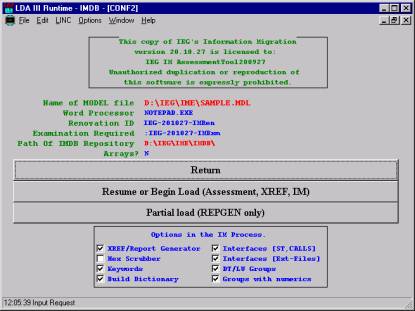
The
check boxes at the bottom of this form indicate which area you wish to include
in the assessment. A check mark
indicates that the process will be included.
An unchecked item indicates that the process will be EXCLUDED. Set these options to reflect which areas you
want included in the evaluation.
Press
"Resume or Begin Load" to begin loading the designated model or press
"Return" to go to the
Main Menu screen.
A
scheduling utility called REPRUN will be
initiated. It will ask for an
"OK".
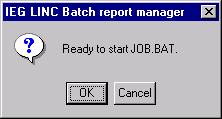
Press
"OK" to continue the load process.
The
loading process will begin through the completion of the assessment. The process can be interrupted. See “Interrupting the process” for more details.
ã
Copyrighted 1995-2008 Information Exchange Group, Inc.